Создание пользователя с паролем/без пароля
Creating a user
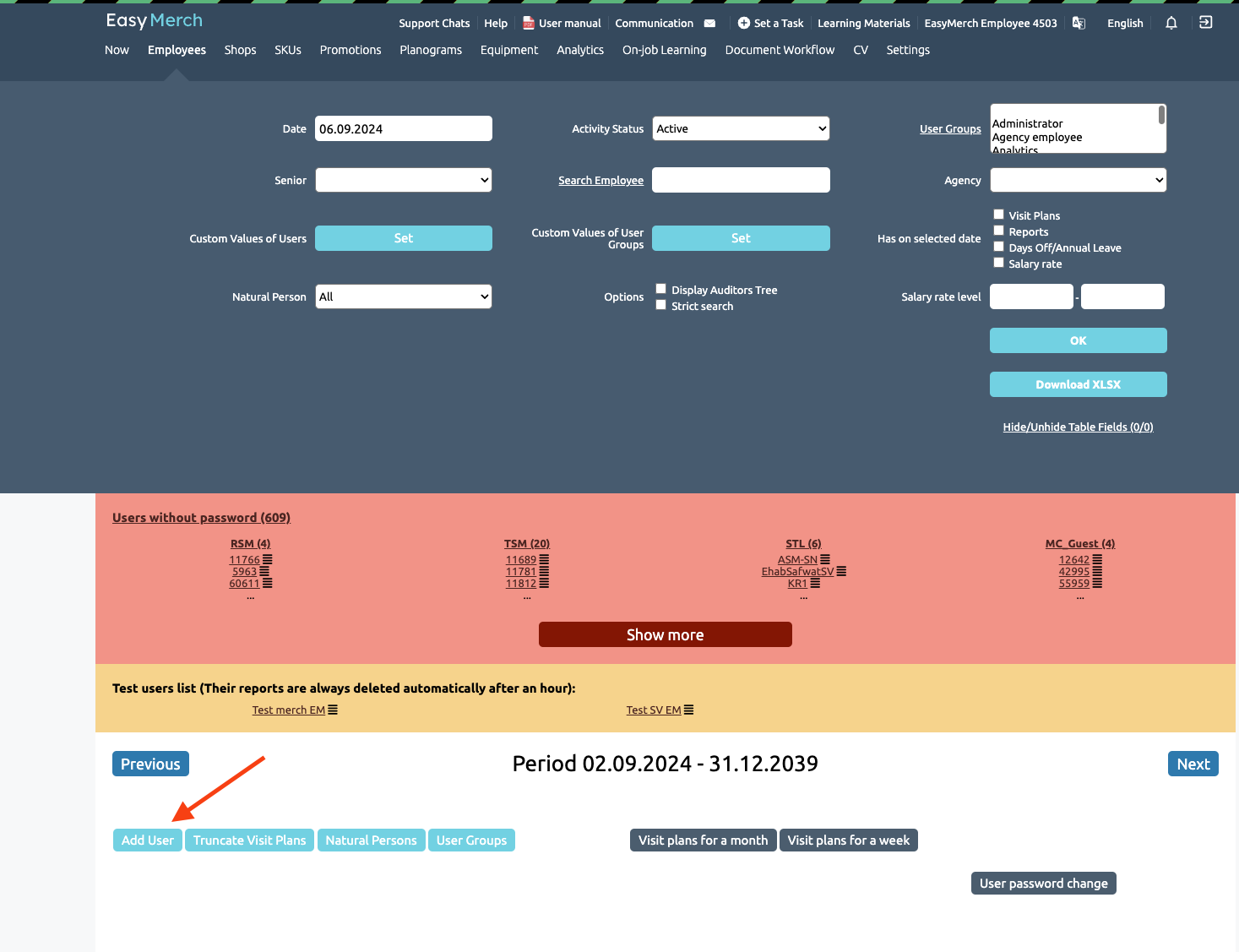
To create a user, you need to go to the page Employees and select «Add User»
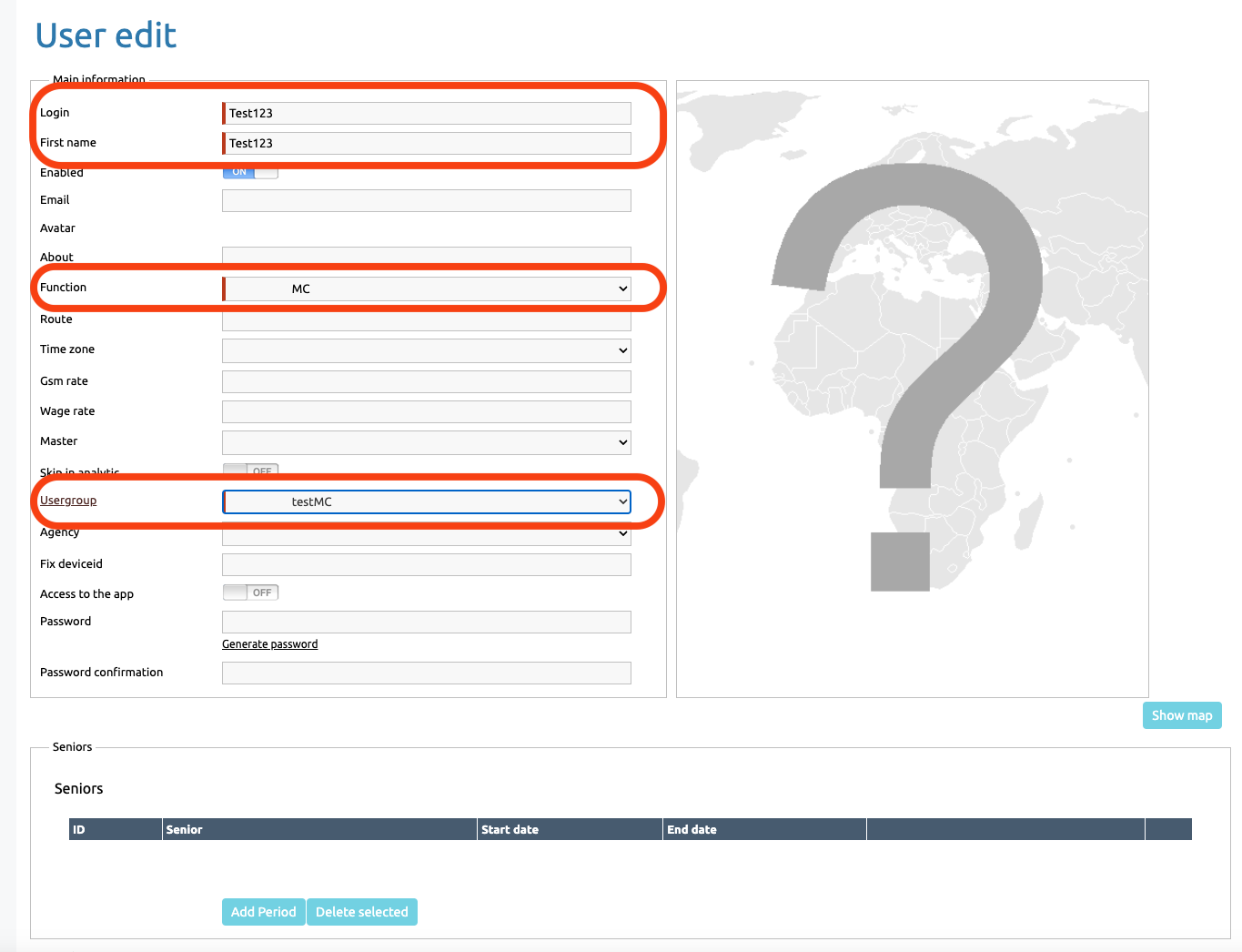
Next, you need to fill in the information about the employee. The required items are highlighted in red
Login — used to log in to the application
First name — The names of the user's route
Function — The position of the employee displayed in the application
Usergroup — a set of pre—prepared accesses in the application and/or on the site
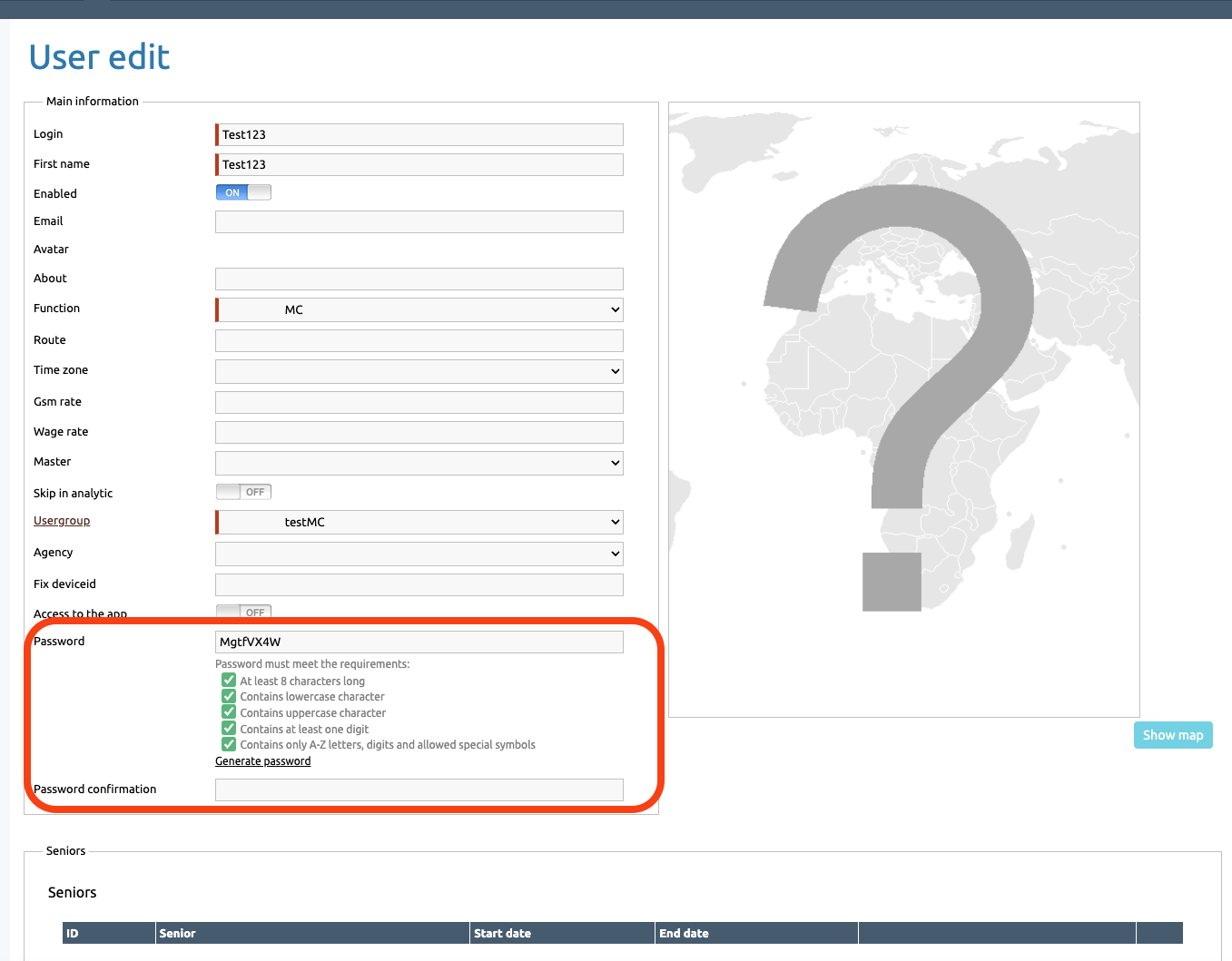
Assigning a password
When creating a user, you can either set your own password according to the specified requirements or generate a random one.
To create a user, go down to the bottom of the page and click the «Save» or «Save and continue» if you want to stay on the page after creation
If you leave the password field empty, the employee will be restricted from accessing the application until the manager issues a password.
If you set a password for the user during creation, he needs to enter a Login, Password and Server to log in
Changing the password by an employee
If an employee wants to change the password on his own, he need to go to the settings and select «Change password», then come up with a new password that meets the requirements.
After entering new password, click Save
Further information about changing password you can find here: "Change your password"
